Getting Started
1.1 Question-Based Analysis
Users can describe their analysis goals in natural language. There is no need to manually select metrics, filters, or charts; the AI will automatically determine the appropriate analysis steps.
1. File Upload
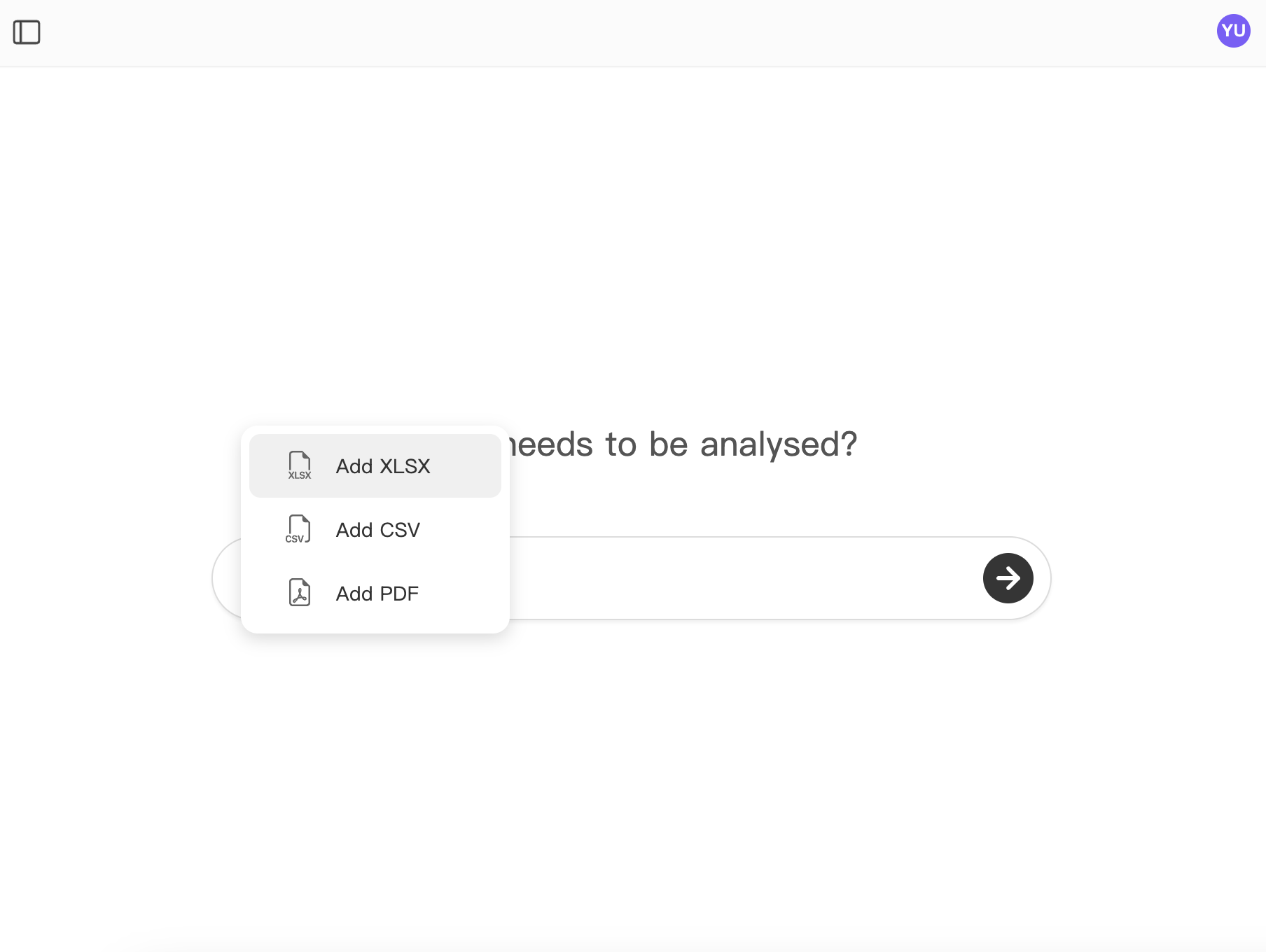
Users can upload their datasets directly in the browser. The system supports common spreadsheet formats and text-based PDF files, and will automatically detect field types after upload.
- Supported formats: Excel (.xlsx), CSV (.csv), and text-based PDF (.pdf, text only)
- For performance and context reasons, only the first 100 columns of a table are read. If your table exceeds 100 columns, consider uploading it in multiple parts.
Once uploaded, the dataset can be immediately used for natural language analysis.
2. Analysis History
Every step of the analysis is automatically saved, creating a transparent and traceable workflow. Users can review previous questions, intermediate results, and final outputs at any time.
- You can ask follow-up questions based on historical results
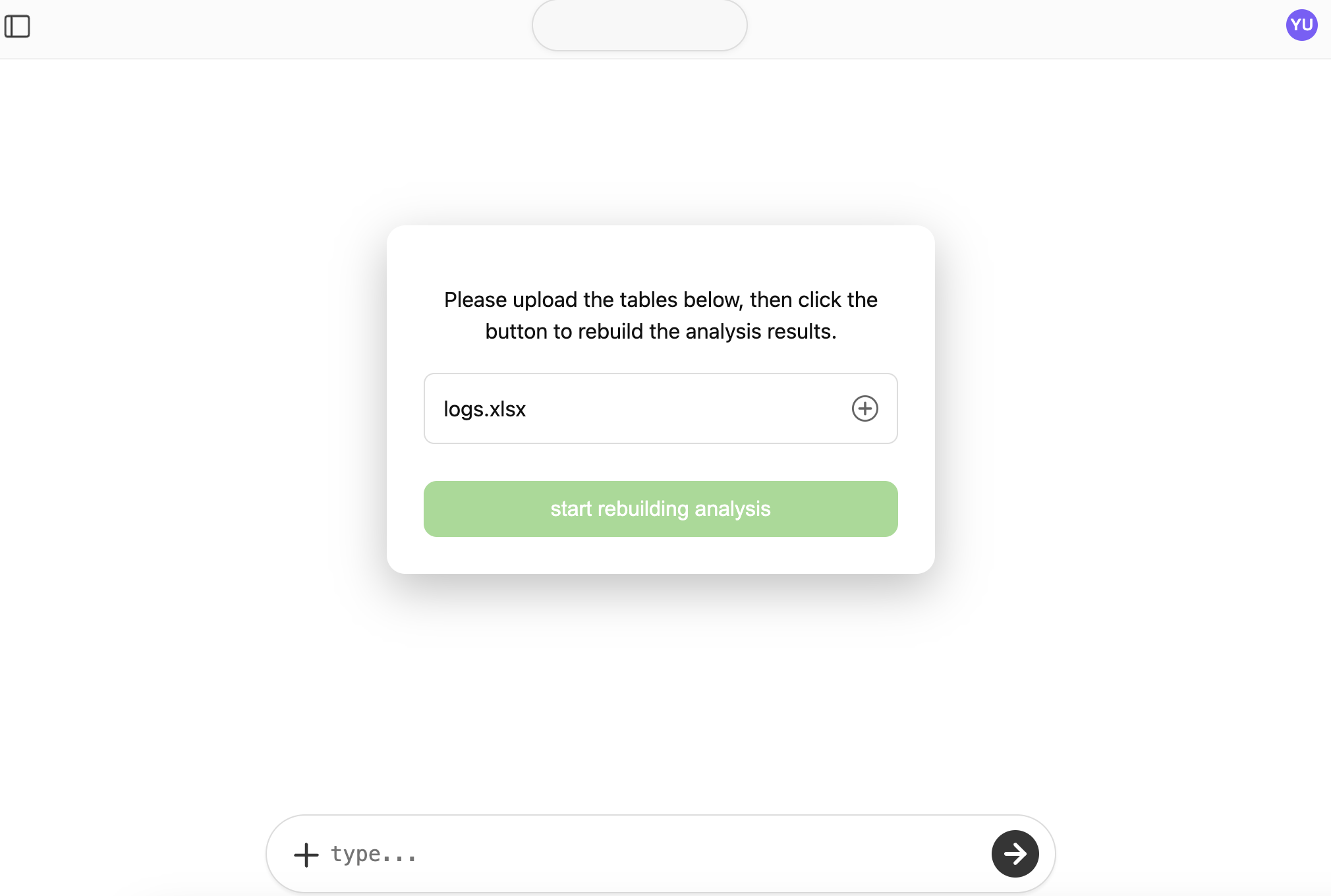
- Since we do not store uploaded files, if a historical record involves your file, you must re-upload it to view the corresponding history
Historical analysis allows the exploration process to be iterative, like having an ongoing conversation with your data.
3. Sharing Analysis Results
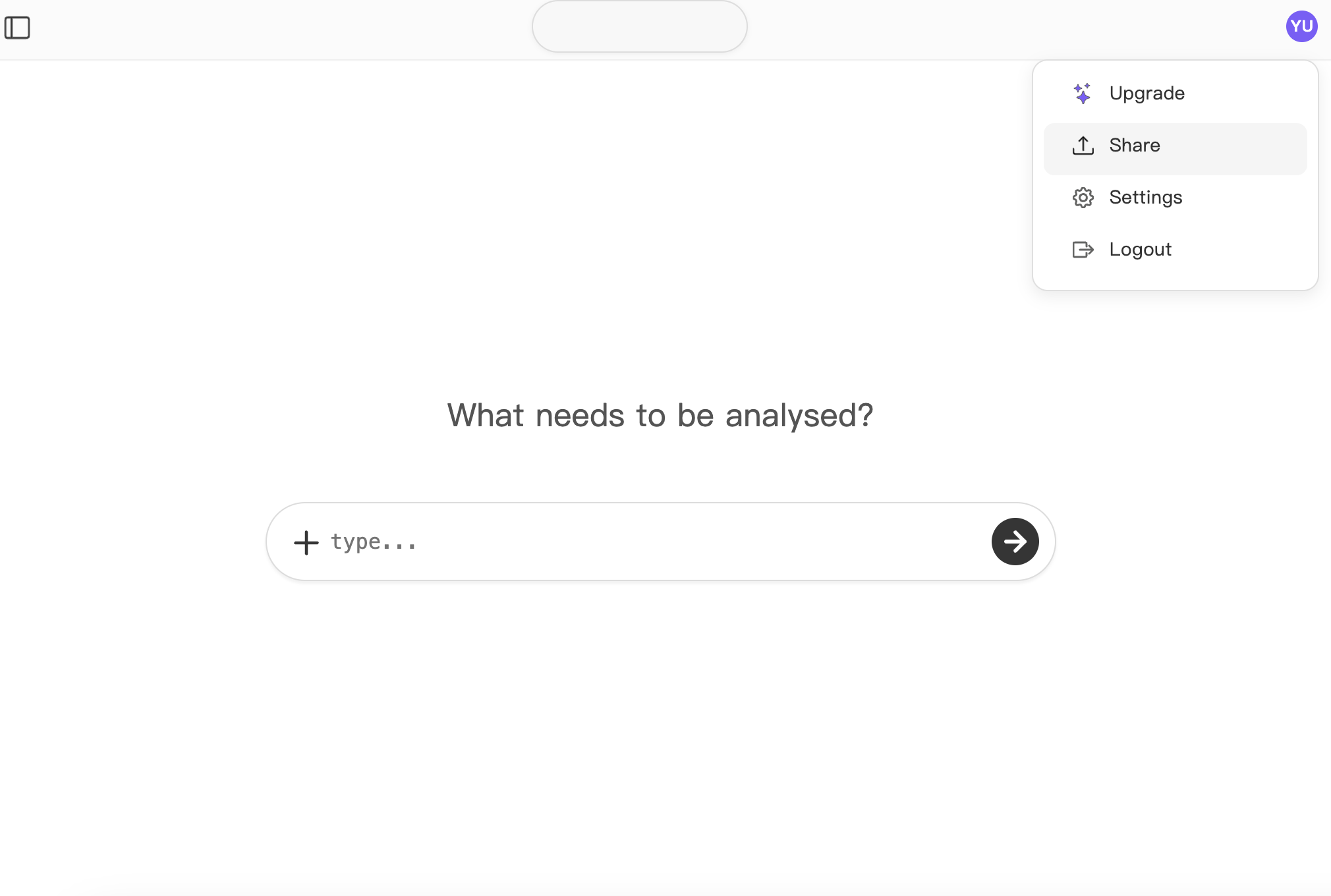
Analysis results can be shared with others via a single generated link, facilitating collaboration or presentation of findings.
- Generate a shareable link with one click
- Data is temporarily uploaded to the server during sharing so the link can be accessed
- You can manage all shared links in the Settings → Data Management section
Shared links retain charts, tables, and explanatory text to ensure insights are understandable and reproducible.